Webhooks
POST a survey response to a URL of your choice the moment it lands. Use it to pipe responses straight into your CRM, lead-routing tool, internal database, or any custom automation — without polling, exports, or batch jobs.
Want an email instead of a webhook? See Email Notifications. Want a scheduled digest? See Email Reports.
How it fits in a workflow
A workflow is a trigger + an action. Webhooks use the On Submission trigger family.
Choose an On Submission trigger
In the Set Trigger panel, under ON SUBMISSION, pick one:
- Any full response — every completed response fires the webhook.
- Any full response with conditions — only responses matching your conditions fire it. Add one or more conditions (e.g. Country equals India, Lead score greater than 80) and combine them with
and/or.
Note: Webhooks are only available for On Submission triggers. On Schedule triggers (Daily / Weekly / Monthly) only support Email Reports.
Set up a Webhook
1. Open the Messages panel
Open your survey and click the Workflow tab. On the right, find the Messages card and click + Add. A full-screen Messages window opens.
2. Add a trigger
Click + next to Triggers to create a new trigger. In the Set Trigger panel, pick an On Submission option, then click Save Logic.
3. Add the Webhook action
Click + Add action, then pick Deliver a webhook.
An Add a webhook dialog opens with one field:
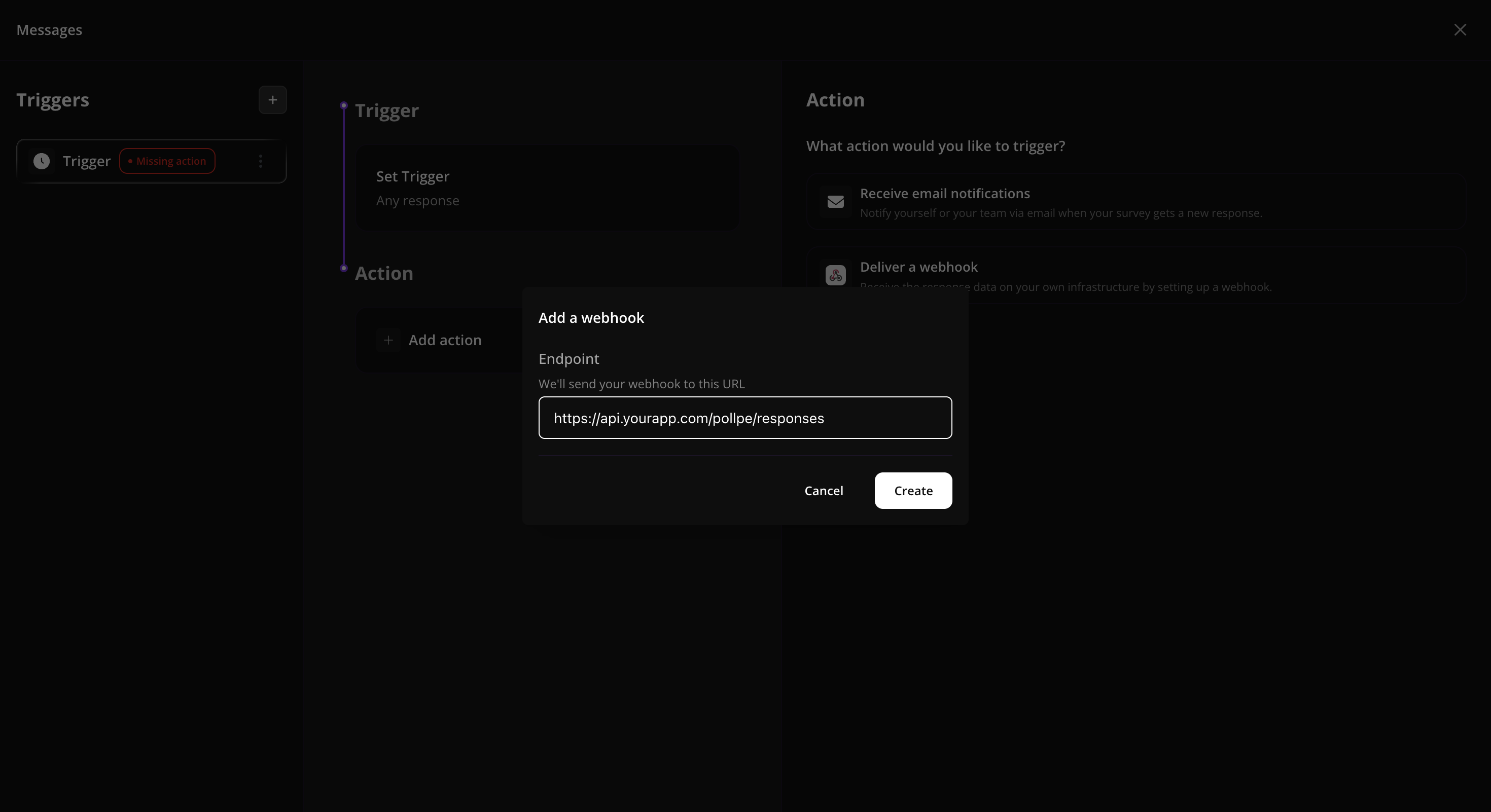
- Endpoint — the URL PollPe will POST to. Must be a fully qualified HTTPS URL (e.g.
https://api.yourapp.com/pollpe/responses).
Click Create to save.
4. Toggle the webhook on
After creating, click the saved action to edit. A Webhook ON / OFF switch appears — flip it to ON, then click Update. Click Save Logic on the workflow. The trigger card shows an Active badge.
New responses will now POST to your endpoint immediately.
What PollPe sends
PollPe sends a JSON POST to your endpoint:
- Method:
POST - Content-Type:
application/json - Body:
{
  "surveyId": "your-survey-id",
  "requestId": "unique-response-id",
  "submittedAt": "2026-05-19T14:32:11.000Z",
  "responses": [
    {
      "questionId": "Q1",
      "question": "What's your name?",
      "answer": "Priya Sharma",
      "response": { /* raw response object with all metadata */ }
    },
    {
      "questionId": "Q2",
      "question": "How likely are you to recommend us?",
      "answer": "9",
      "response": { /* raw response object */ }
    }
  ],
  "hidden": {
    "source": "newsletter",
    "campaign": "spring-2026"
  },
  "quizScore": "8/10"
}
Field reference:
| Field | Description |
|---|---|
surveyId | The ID of the survey. |
requestId | A unique ID for this response — use it for deduplication on your side. |
submittedAt | ISO timestamp of when the response was submitted. |
responses[] | One item per answered question. answer is the human-readable value; response carries the raw structured payload (choice IDs, files, scores, etc.). |
hidden | Any hidden URL parameters that were attached to this response. |
quizScore | Present only if the survey is in Quiz mode. Format: acquired/total. |
The exact shape of answer depends on the question type — multiple choice values are comma-joined, ratings/NPS return the score, matrix questions return row: column pairs, and so on.
Manage your webhook
From the Messages window, click the saved Webhook action to:
- Edit the endpoint URL.
- Toggle ON / OFF without deleting the action — useful for pausing during maintenance.
- Delete to remove the action entirely.
Tips & limits
- Use HTTPS. PollPe will POST to HTTP endpoints, but plain HTTP is not recommended — response data should be in transit.
- Respond fast. PollPe sends the POST and doesn't wait for a long response. Your endpoint should accept the body quickly and process asynchronously if work takes more than a few seconds.
- No retries. If your endpoint is down when the webhook fires, the delivery is dropped. Run your endpoint behind a queue or a reliable proxy if you can't afford to lose responses.
- Use
requestIdfor deduplication. If you ever replay or backfill data, therequestIduniquely identifies each response. - Combine with Email Notifications. Put both actions on the same On Submission trigger — your stack gets the JSON payload, your team gets a human-readable email.
- Use conditions to limit fan-out. If your endpoint is only interested in qualifying leads, use Any full response with conditions rather than Any full response.
Common use cases
- Push to CRM. POST to your CRM's intake endpoint so leads land in the right pipeline automatically.
- Lead routing. Use conditions to send only matching responses (e.g. Country equals India) to a region-specific endpoint.
- Slack alerts. POST to a Slack incoming webhook URL with a conditional trigger for high-intent responses.
- Database sync. Push every response to your data warehouse for joining with product or revenue data.
- Custom automations. Trigger an n8n, Make, or Zapier workflow on your side using PollPe's webhook as the entry point.
Related
- Email Notifications — pair with a webhook to alert humans and machines from the same trigger.
- Zapier Integration — if you'd rather not host a webhook endpoint, route responses through Zapier instead.