Email Reports
Send a digest of your survey activity to a chosen list of recipients on a fixed daily, weekly, or monthly clock. Use it to keep leadership, ops, or a partner team in the loop without anyone exporting CSVs.
Want an instant email when each response comes in? See Email Notifications. Want to POST to your own stack? See Webhooks.
How it fits in a workflow
A workflow is a trigger + an action. Email Reports uses the On Schedule trigger family.
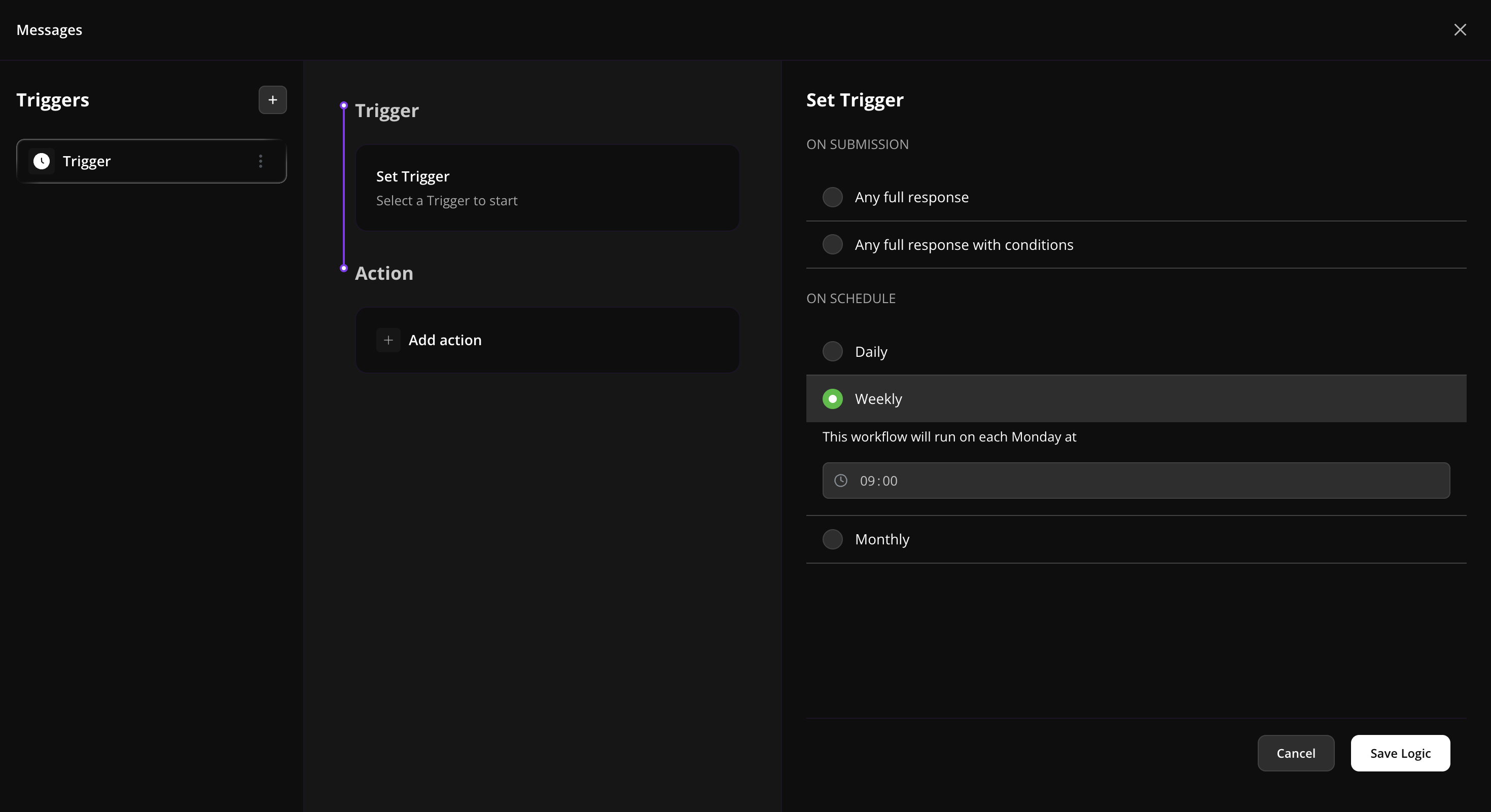
Choose an On Schedule trigger
In the Set Trigger panel, under ON SCHEDULE, pick one:
- Daily — sends every day at the chosen time.
- Weekly — sends every Monday at the chosen time.
- Monthly — sends on the 1st of every month at the chosen time.
Use the time picker to set the send time (24-hour format, defaults to 09:00). The time is interpreted in your workspace timezone.
Note: Email Reports is the only action available for On Schedule triggers. If you want a per-response email instead, switch to an On Submission trigger and use Email Notifications.
Set up an Email Report
1. Open the Messages panel
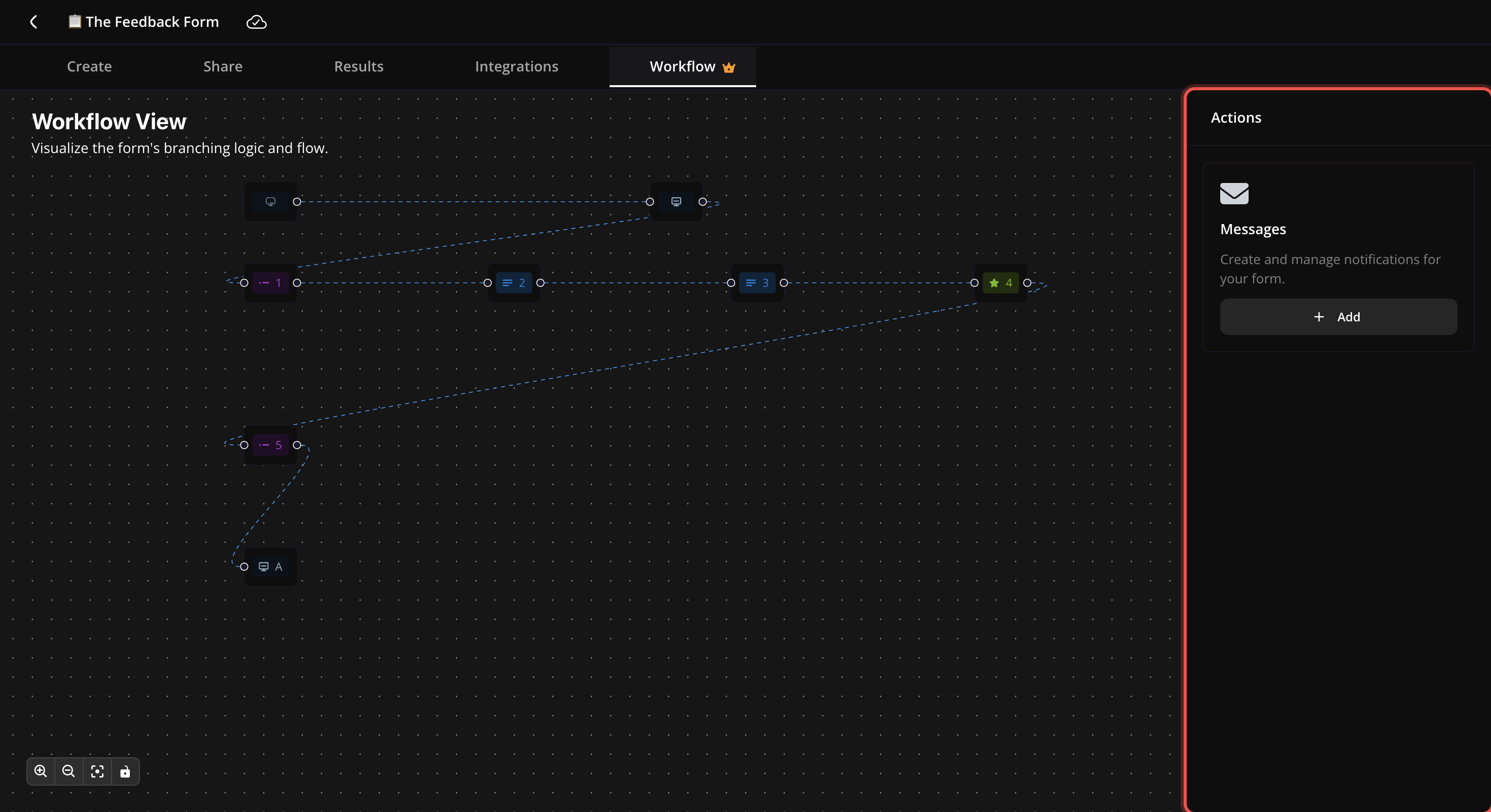
Open your survey and click the Workflow tab. On the right of the canvas, find the Messages card and click + Add. A full-screen Messages window opens.
2. Add a trigger
Click + next to Triggers to create a new trigger. In the Set Trigger panel, scroll down to ON SCHEDULE and pick Daily, Weekly, or Monthly. Set the send time with the time picker (24-hour, defaults to 09:00), then click Save Logic.
3. Add the Receive Reports action
Click + Add action. For scheduled triggers, Receive Reports is the only available action.
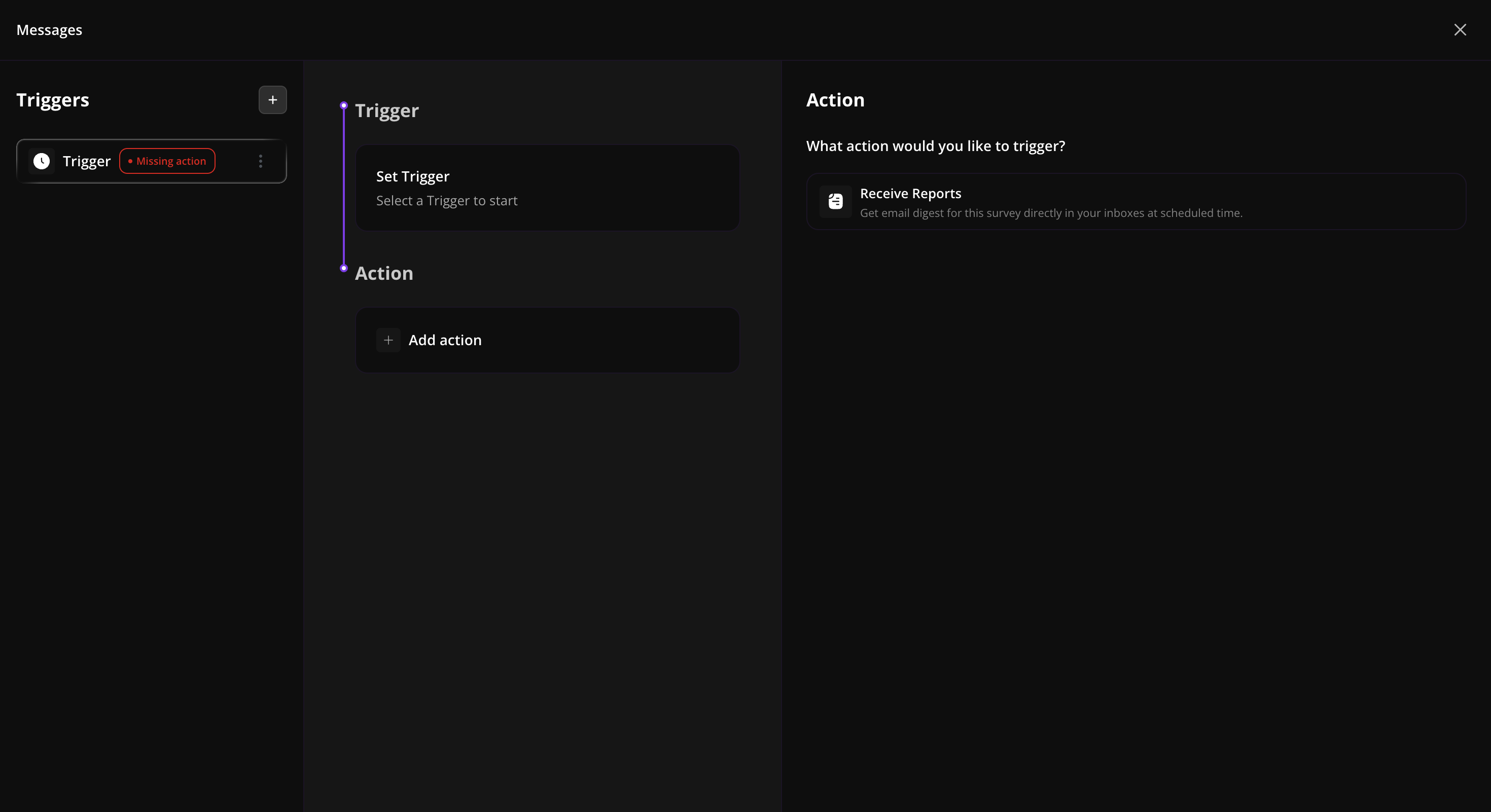
Click Receive Reports. An Add Recipients dialog opens. Add the email addresses that should receive the digest in the To field — press Enter after each address to add it as a tag.
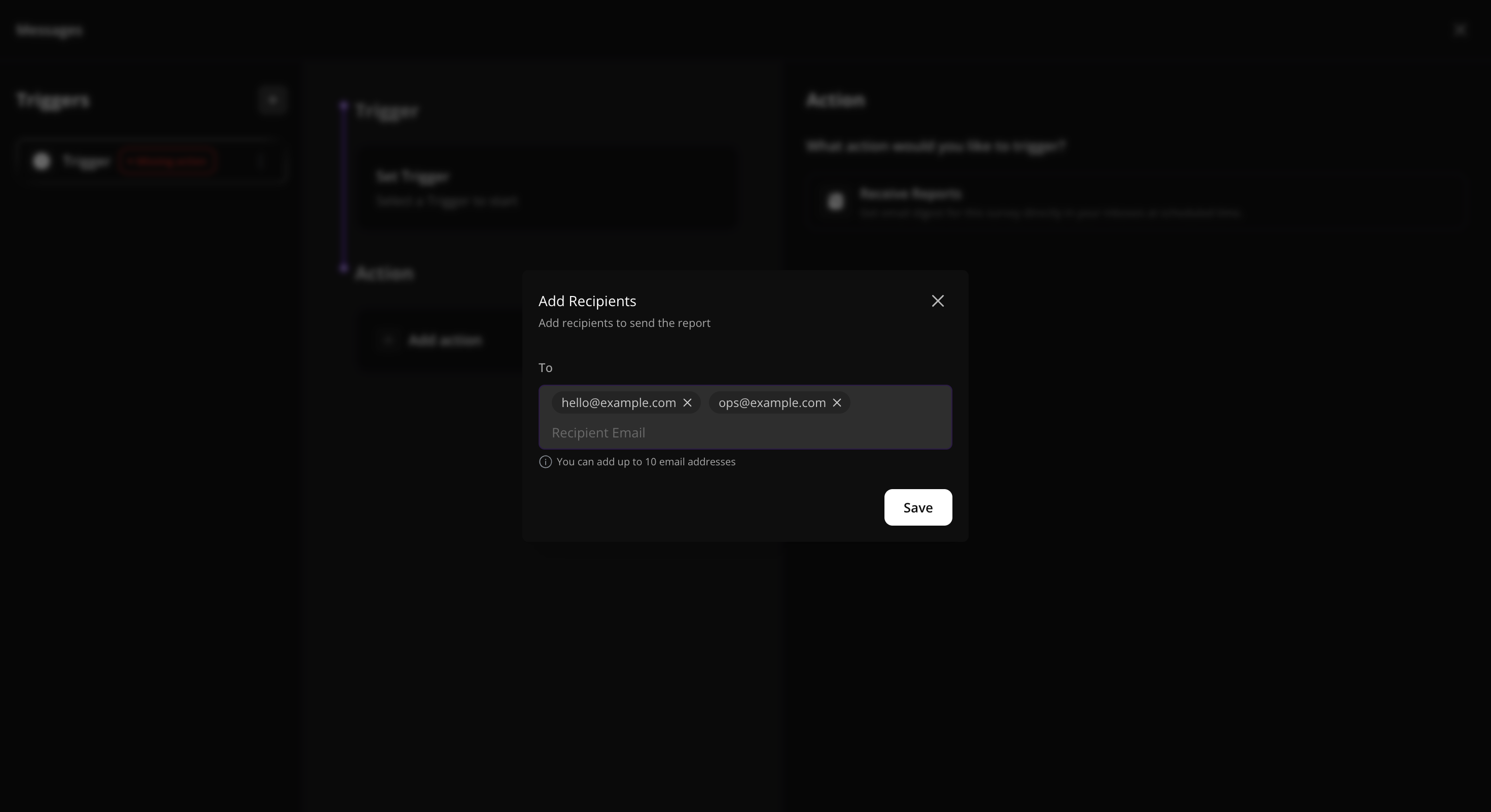
Recipient limit: depends on your plan — most accounts can add up to 10 email addresses per report, and some plans allow more. If you hit the cap, reach out to support to lift it.
Click Save, then Save Logic on the workflow. The trigger card shows an Active badge, and the action card shows the recipients as pills.
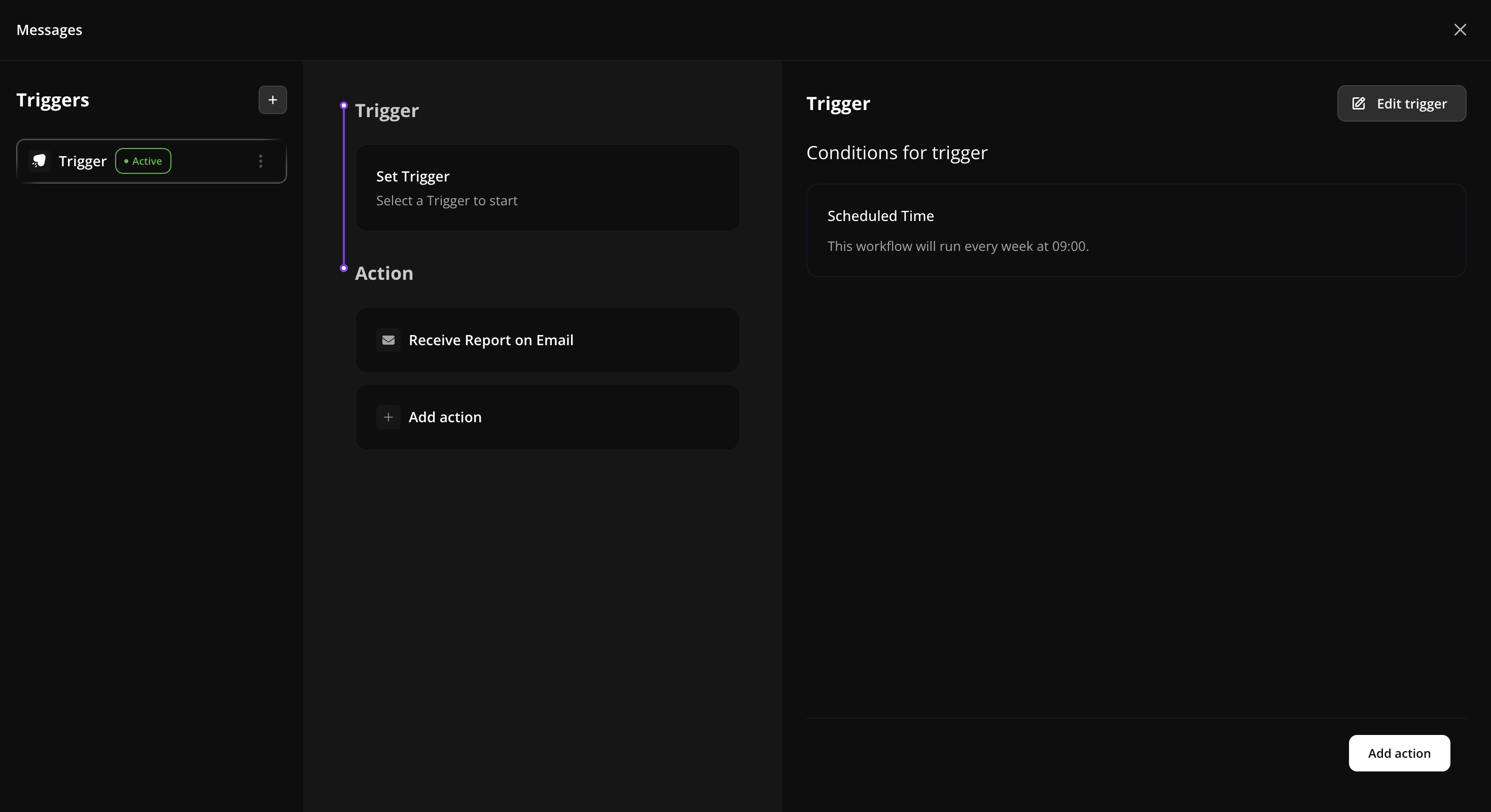
PollPe will now email the digest to those recipients on the schedule you picked — no manual step required.
What's in the report
Each report is an email digest summarising activity for the survey:
- Daily reports cover activity from the previous day.
- Weekly reports cover activity from the previous week.
- Monthly reports cover activity from the previous calendar month.
The metrics mirror what you'd see on the survey's Results dashboard — response counts, completion rate, and a high-level breakdown — so anyone reading the email gets the same picture without needing dashboard access.
Manage your report
From the Messages window, click the saved Receive Reports action to:
- Edit — change the recipient list.
- Delete — remove the action. The trigger stays, but no reports send until you add an action again.
To change the cadence (Daily / Weekly / Monthly) or the send time, click Edit Trigger on the trigger card.
Tips & limits
- Recipient cap varies by plan. Most accounts get up to 10 per report; some plans allow more. For wider audiences, add a shared distribution list address — or contact support to raise the cap.
- One Receive Reports action per workflow.
- Run multiple cadences side-by-side. Want a daily ops digest and a Monday leadership digest? Create two separate triggers with different schedules and recipient lists.
- Timezone: the schedule time is interpreted in your workspace timezone. Pick a send time that lines up with when the digest will actually get read.
- Switching the trigger swaps the available actions. If you change a workflow from On Schedule to On Submission (or back), the action options change accordingly — existing actions may need to be re-added.
Common use cases
- Monday leadership digest — weekly report at 09:00 every Monday to founders and team leads.
- Daily ops summary — daily report at 08:00 to the operations channel address.
- Month-end recap — monthly report at 09:00 on the 1st to finance and the survey owner.
- Partner update — share survey activity with an external partner without giving them dashboard access.