Advanced Logic
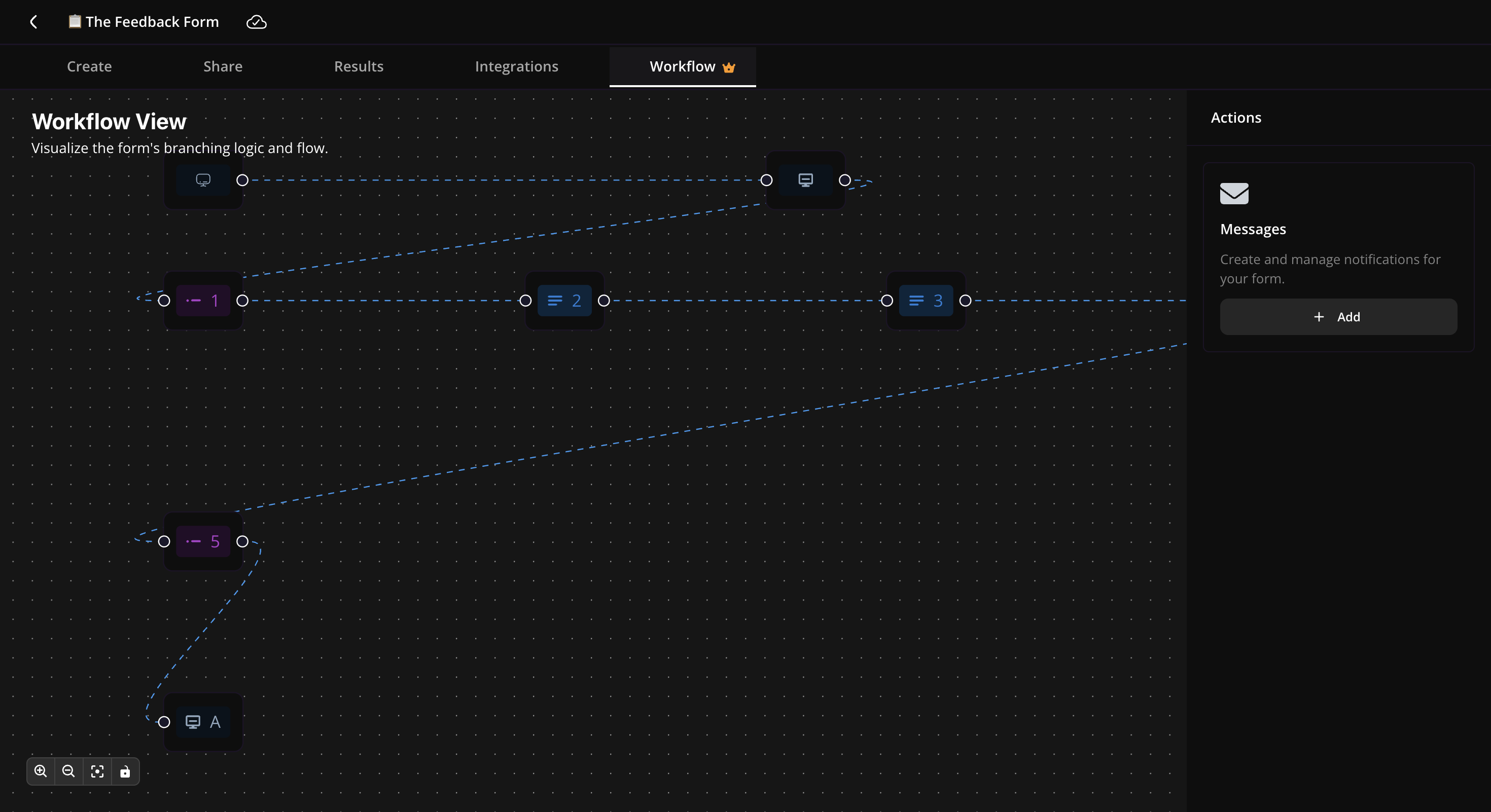
The Advanced Logic canvas is the visual map of your survey. Every question, every end screen, and a few special nodes for device and URL-parameter routing are laid out as a flow. Click any node to attach rules that change where respondents go next — without writing a line of code.
Looking for the basic per-question "go to question based on answer" feature? See Logic under Building Surveys. The Advanced Logic canvas is where you set those rules visually and extends them with device and URL-parameter routing.
Open the canvas
Open any survey and click the Workflow tab in the top navigation. The canvas takes the whole page. The right-side Messages card is for triggers and actions (covered separately in Email Notifications, Email Reports, and Webhooks).
What's on the canvas
The canvas shows your survey as a directed flow. Five kinds of nodes can appear:
| Node | What it represents | When it appears |
|---|---|---|
| Start | Your Welcome Screen | Always (if a Welcome Screen exists) |
| Device | "Starting logic based on device" | Always — click to route by mobile vs desktop |
| Hidden Parameter | "Starting logic based on URL parameters" | When you've configured hidden fields for the survey |
| Question | One node per question | One per question in the survey |
| End Screen | A thank-you / end screen | One per end screen |
Default flow is linear: Start → Question 1 → Question 2 → … → End Screen. Logic rules override the default flow.
Add a rule to a node
Click any node on the canvas. The Create Logic modal opens for that node, with two sections:
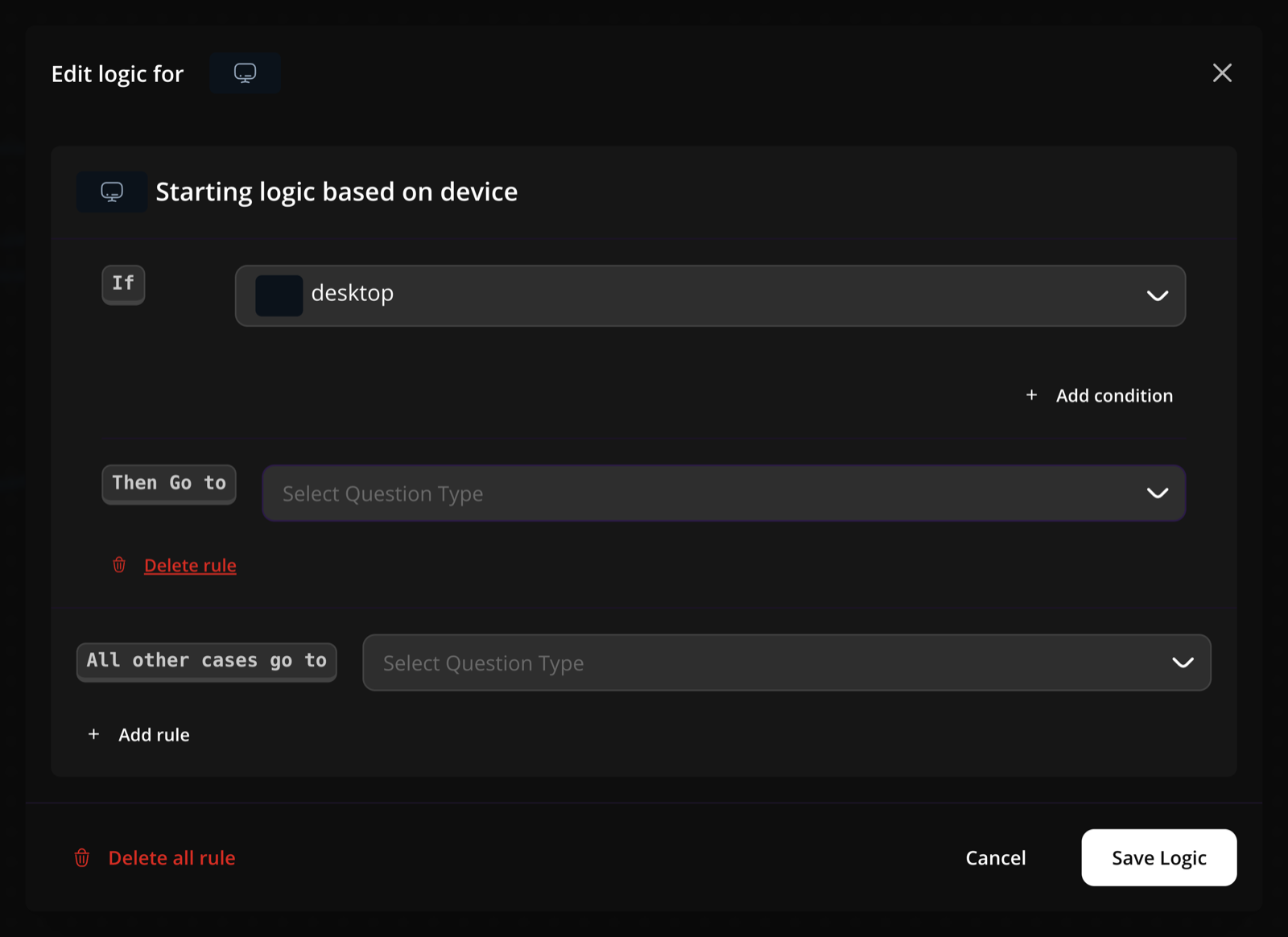
Conditional rules (the if side)
If the answer matches these conditions, send the respondent to this destination.
Each rule has:
- One or more conditions — each condition is a
question + operator + value. Combine multiple conditions on the same rule withand/or. - A destination — where to jump if the rule matches. Destinations can be any question, any section, or any end screen.
Add as many rules as you need. Rules are evaluated in order, top to bottom — the first rule that matches wins.
Always destination (the default else)
If no conditional rule matches, send the respondent here.
Pick one default destination. Without an Always rule, the survey falls back to the next question in linear order.
Click Save to write the rule set onto the node.
Operators available
The available operators depend on the question type. The most common ones:
| Operator | Works on |
|---|---|
equals / not equals | Single choice, dropdown, yes/no, legal, picture choice |
contains / has one of | Multiple choice, text fields |
less than / greater than | Number, rating, slider, NPS, opinion scale |
is on / is not on / is before / is after / is before or on / is after or on | Date picker |
in | When matching against a list of values |
Yes/No and Legal questions skip the operator picker — choose Yes or No (or Accept / Decline) as the value directly.
The three special nodes
These let you set logic before any question is shown — useful for personalizing the survey from the moment the respondent lands.
Device node — route by mobile or desktop
Open the Device node and add a rule like Device equals mobile → jump to Question 5. Use it to skip questions that don't make sense on a small screen, or to deliver different question paths to different devices.
Hidden Parameter node — route by URL
If you've added hidden parameters to the share link (e.g. ?source=newsletter or ?segment=enterprise), the Hidden Parameter node lets you branch on those values. Common uses:
- Send newsletter respondents to a different opening question than ad respondents.
- Skip qualification questions for users you already know (e.g.
?segment=enterprise → jump to Question 10). - Tag responses with a hidden value that gets stored alongside the answers.
The Hidden Parameter node only appears when at least one hidden field is configured for the survey. Set up hidden parameters →
Start node — Welcome Screen routing
If your survey opens with a Welcome Screen, the Start node represents that screen. You generally won't add rules here directly, but it appears on the canvas to show where the flow begins.
A few worked examples
Skip irrelevant questions. On the "What's your role?" question, add: If role equals Student → jump to End Screen. Students skip the rest of the survey and see a thank-you immediately.
Route low NPS to a follow-up. On the NPS question, add: If score less than 7 → jump to "What went wrong?" question. Detractors get a follow-up; promoters skip straight to the end.
Branch by source.
On the Hidden Parameter node, add: If source equals ad → jump to "How did the ad describe us?", then add an Always destination of "How did you hear about us?" for everyone else.
Different end screens by answer. On a satisfaction question, add: If rating equals 5 → jump to "Glad to hear it!" end screen, If rating less than 3 → jump to "Sorry we missed the mark" end screen, then Always → default end screen.
Tips & limits
- Rule order matters. The first rule that matches wins, so put the most specific rules at the top and broader rules below.
- Always destination acts as the default. Without it, the survey continues in the natural question order when no rule matches.
- End screens are valid destinations. Use them to cut the survey short for specific paths (e.g. disqualifying respondents who don't match your target).
- Loops are not supported. Jumping back to an earlier question can create infinite loops — PollPe prevents this by only allowing forward jumps in most cases.
- Logic runs at the respondent's side. Rules are evaluated as the respondent submits each question, so the next-question decision is instant.
- Test before you publish. Use the survey preview to walk through every branch — it's easy to add a condition and forget to add the matching destination.
Where logic lives in the data
Each node's logic is saved as a logic block on the form, tagged by ref (the question id, device_mode, or hidden_field). The block holds an array of actions — your conditional rules plus the Always rule. You don't need to touch this directly; the canvas writes it for you. But knowing it exists helps when you're exporting form definitions or syncing across environments.
Related
- Logic (basic) — quick intro to per-question logic.
- Hidden Parameters — set up the URL fields that the Hidden Parameter node reads.
- Email Notifications — automate emails when responses match conditions.