Workflows Overview
Workflows are PollPe's single workspace for shaping the respondent's journey and automating what happens when a response arrives. Open the Workflow tab on any survey and you'll find both halves there.
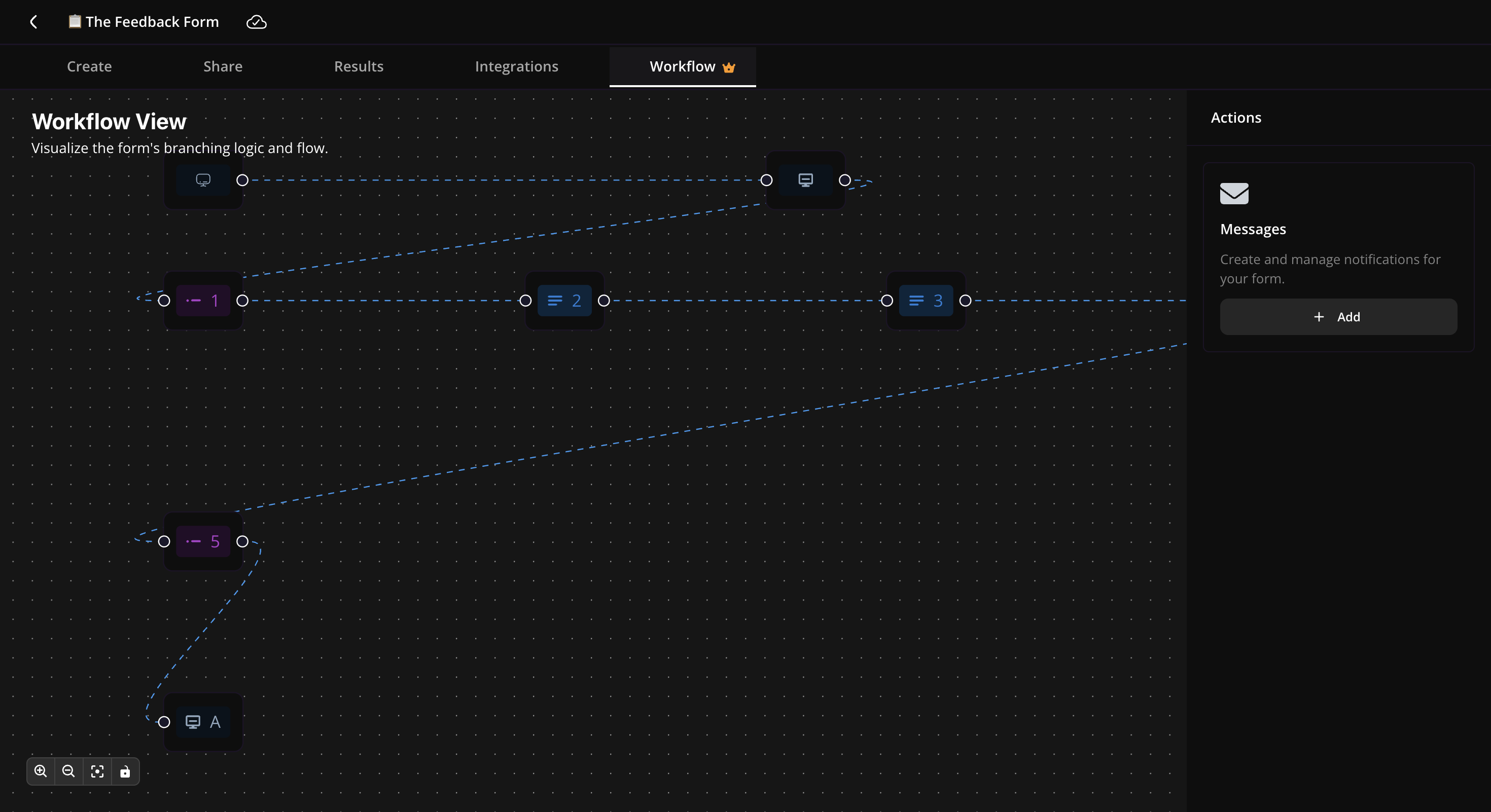
The two halves of a workflow
1. Advanced Logic — shape the path
The main view is a visual canvas of your survey: every question, every end screen, plus two special nodes for device and URL parameters. Click any node to add conditional rules for that point in the flow:
- Branch to a different question or section based on the answer.
- Route by device type (mobile vs desktop) or by a hidden URL parameter.
- Send the respondent straight to an end screen when a condition is met.
This is where you build dynamic, personalized survey paths that go beyond a basic linear flow.
2. Messages — automate what happens next
A side panel on the workflow page labeled Messages. Open it to set up automations that fire when responses come in or on a recurring schedule. Each automation is a trigger + an action:
- Trigger: when does this run? On every response, on responses that match conditions, or on a daily / weekly / monthly schedule.
- Action: what does it do? Send an email notification, send a recurring report, or POST a webhook to your stack.
Email Notifications → — send a custom email per response.
Email Reports → — recurring digest of survey activity to your inbox.
Webhooks → — POST the response payload to a URL you control.
Where to find Workflows
Open any survey from your dashboard and click the Workflow tab in the top navigation. You'll land on the canvas (Advanced Logic). The Messages panel sits on the right side of the same page.
Looking for the simple "go to question based on answer" feature you set on a single question? That's covered in Logic under Building Surveys. For the full visual canvas, device routing, and URL-parameter routing, head to Advanced Logic.